

Campaign Manager 360 (CM360) is Google’s enterprise ad server and measurement platform, the backbone of the Google Marketing Platform that connects advertising execution with performance measurement. While Display & Video 360 (DV360) buys programmatic media and Search Ads 360 (SA360) manages search, CM360 serves ads across all channels and provides unified tracking, attribution, and reporting.
For organisations using multiple GMP products or running media across diverse channels, CM360 provides the single source of truth for marketing performance.
This guide covers ad serving, Floodlight tracking, attribution modelling, and the reporting capabilities that make CM360 essential for enterprise advertisers.
In this guide:
- What Is Campaign Manager 360?, Core functions and GMP role
- How Is CM360 Structured?, Account hierarchy and key terms
- What Is Floodlight and How Do You Implement It?, Conversion tracking setup
- How Does CM360 Attribution Work?, Attribution models explained
- How Do You Traffic Campaigns in CM360?, Campaign setup workflow
- How Does CM360 Integrate with Other GMP Products?, Platform integrations
- What Reporting Does CM360 Provide?, Reports and data export
- What Verification Does CM360 Provide?, Viewability and brand safety
What Is Campaign Manager 360?
Campaign Manager 360 is Google’s enterprise ad serving and measurement platform.
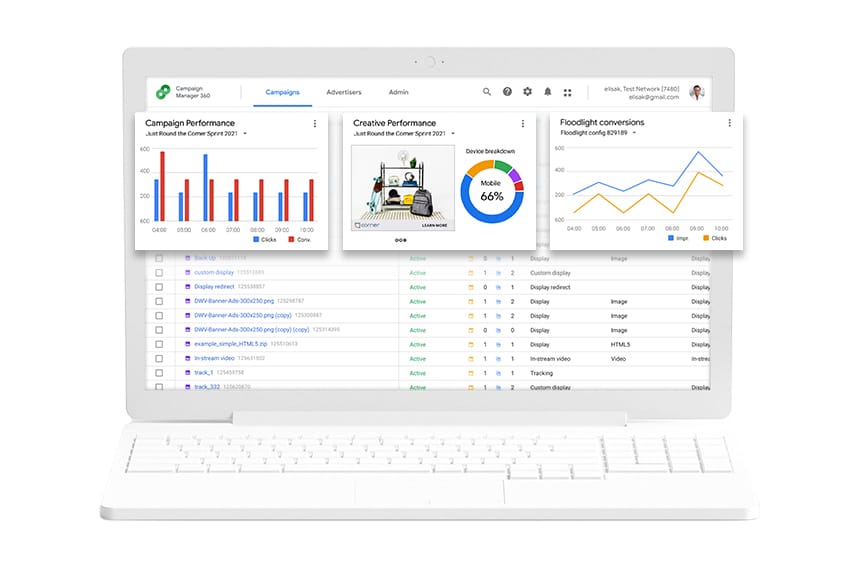
It performs three core functions:
1. Ad Serving
Deliver ads across all digital channels:
- Display banners
- Video ads (VAST/VPAID)
- Rich media
- Native ads
- Audio ads
2. Tracking & Measurement
Track user interactions across all media:
- Impressions (ad views)
- Clicks
- Conversions (Floodlight)
- View-through attribution
- Cross-device tracking
3. Reporting & Attribution
Unified reporting and attribution modelling:
- Cross-channel performance
- Path to conversion analysis
- Data-driven attribution
- Verification reporting
CM360 Field Names in GA4 and Looker
If you’re using CM360 data in GA4, Looker, or BigQuery, the most common dimension names you’ll encounter are:
- cm360 advertiser name, the top-level CM360 account
- cm360 campaign name, campaign-level grouping
- cm360 creative format, display, video, native, etc.
- cm360 creative name, individual ad creative
- cm360 medium / cm360 source, channel attribution dimensions
- first user cm360 [field], first-touch attribution variants (GA4 user-scoped)
These dimensions are populated when CM360 is properly linked to GA4 and Floodlight tags are firing correctly. If they’re showing as (not set), the link configuration likely needs review.
Why CM360 Is the GMP Foundation
CM360 sits at the centre of the Google Marketing Platform, acting as the central hub that connects all advertising channels.
The diagram below illustrates how CM360 provides unified tracking and reporting across DV360 (programmatic display), SA360 (search), Google Analytics 360 (GA360), and other marketing channels like direct buys and social media:
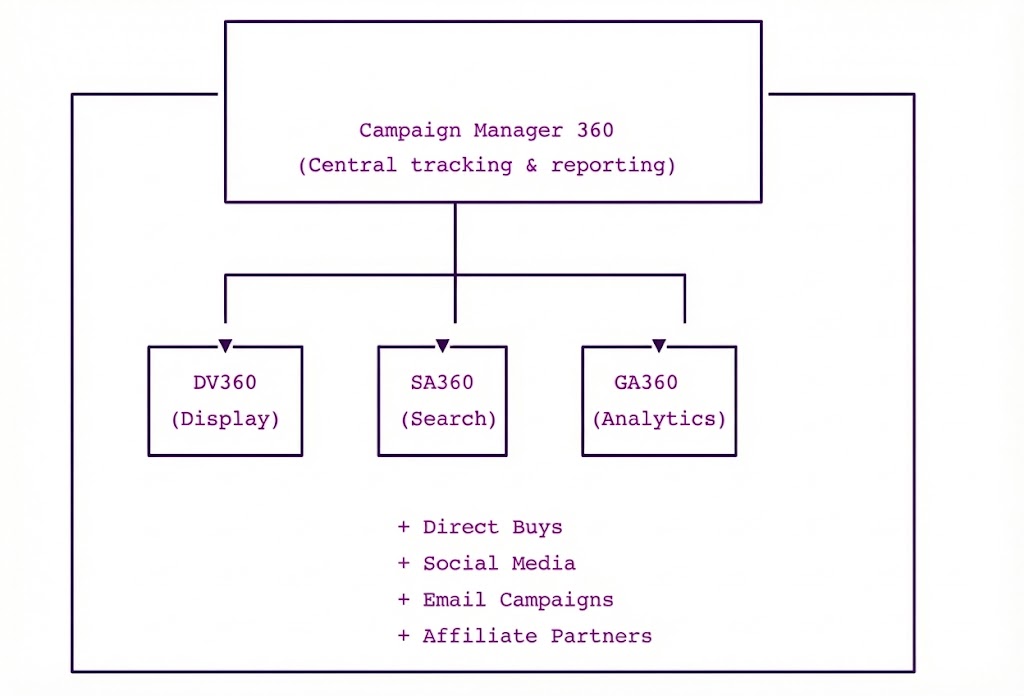
CM360 enables:
- Single view of all advertising performance
- Consistent conversion tracking (Floodlight)
- Cross-channel attribution
- Unified frequency management
- Verification across all media
How Is CM360 Structured?
Understanding CM360’s hierarchy is essential for effective campaign management.
Account Structure
CM360 uses a hierarchical structure where each level serves a specific purpose.
At the top sits your Advertiser account, which contains all campaigns, conversion tracking (Floodlight), and reporting.
Campaigns hold placements (your media buys), which in turn contain ads (creative assignments).
This structure mirrors how media plans are typically organised:
Account (Advertiser in CM360)
    │
    ├── Campaigns (Containers for placements)
    │       │
    │       └── Placements (Media buy instances)
    │               │
    │               └── Ads (Creative assignments)
    │                       │
    │                       └── Creatives (Ad content)
    │
    ├── Floodlight Configuration
    │       │
    │       ├── Activities (Conversion types)
    │       │       │
    │       │       └── Tags (Tracking code)
    │       │
    │       └── Attribution Settings
    │
    └── Reporting
            │
            ├── Standard Reports
            └── Report Builder
Key Terms
| Term | Definition |
|---|---|
| Campaign | Container for a media initiative (e.g., “Q1 2026 Brand”) |
| Placement | Specific media buy (e.g., “News.com.au – Homepage Takeover”) |
| Ad | Assignment of creative to placement |
| Creative | Actual ad content (image, video, HTML5) |
| Floodlight Activity | Conversion type being tracked |
| Floodlight Tag | JavaScript/pixel that fires on conversion |
Trafficking Workflow
The trafficking workflow outlines the step-by-step process for getting ads live.
You start by creating the campaign container, then define where your ads will run (placements), upload creative assets, assign creatives to placements (creating ads), generate tracking tags, and finally send those tags to publishers for implementation:
1. Create Campaign
       │
       ▼
2. Define Placements (media buys)
       │
       ▼
3. Upload Creatives
       │
       ▼
4. Create Ads (assign creatives to placements)
       │
       ▼
5. Generate Tags (ad tags for publishers)
       │
       ▼
6. Traffic Tags (send to publishers/DSPs)
       │
       ▼
7. Campaign Goes Live
       │
       ▼
8. Track & Report
What Is Floodlight and How Do You Implement It?
Floodlight is CM360’s conversion tracking system, arguably its most important feature for marketers.
How Floodlight Works
Floodlight connects advertising exposure to business outcomes.
When a user sees or clicks an ad served by CM360, a cookie is set. Later, when that user converts on your website, the Floodlight tag fires and CM360 matches the conversion back to the original ad exposure.
This enables accurate attribution and feeds conversion data back to DV360 and SA360 for bid optimisation:
User sees/clicks ad (CM360 tracks)
         │
         ▼
User visits website
         │
         ▼
User completes conversion
         │
         ▼
Floodlight tag fires
         │
         ▼
CM360 attributes conversion to advertising
         │
         ▼
Data available in CM360 reporting
         │
         ▼
Conversion data shared with DV360/SA360 for bidding
Floodlight Activity Types
| Type | Tracks | Example |
|---|---|---|
| Counter | Actions (counts) | Page views, sign-ups |
| Sales | Transactions with value | Purchases, revenue |
Setting Up Floodlight
Step 1: Create Floodlight Configuration
- In CM360, go to Advertiser > Configuration
- Create new configuration (if needed)
- Set default attribution settings
When setting up a new Floodlight Configuration, also recommended:
- DV360 Linking
- Google Tag Manager Linking
- Enabling Enhanced Attribution
- Enabling Enhanced Conversions
- Enabling Extended path length for path to conversion
Optional: Custom Floodlight Variables (usually requires a floodlight plan first)
Step 2: Create Floodlight Activities
Go to Advertiser > Activities and click “New” (note: this navigation is changing to Advertiser > Conversions later in 2026).
Current workflow fields:
- Name
- Type (Counter or Sales)
- Activity Group
- Counting Method
- Tag Format (Google Tag recommended)
- Category
- Expected URL
- Enhanced Conversions
- Activity string (optional)
- Custom Floodlight Variables
New workflow fields (rolling out later in 2026):
- Conversion Category
- Name
- Conversion Settings (counting method)
- Enhanced Conversions
- Under “Advanced Properties”: Tag format (Google Tag recommended), Webpage URL, Conversion tag string (optional), Conversion group, Custom Floodlight Variables
Counting methods:
- Standard: Count every tag fire
- Unique: Count once per user per day
- Per session: Count once per session
Tip: Activities can also be created in bulk to simplify the process and reduce errors.
Step 3: Generate and Implement Tags
CM360 generates JavaScript tags for your website:
Counter tag example:
<script type="text/javascript">
var axel = Math.random() + "";
var a = axel * 10000000000000;
document.write('<iframe src="https://[floodlightserver]/activityi;src=[src];type=[type];cat=[cat];dc_lat=;dc_rdid=;tag_for_child_directed_treatment=;tfua=;npa=;gdpr=${GDPR};gdpr_consent=${GDPR_CONSENT_755};ord=' + a + '?" width="1" height="1" frameborder="0" style="display:none"></iframe>');
</script>
<noscript>
<iframe src="https://[floodlightserver]/activityi;src=[src];type=[type];cat=[cat];dc_lat=;dc_rdid=;tag_for_child_directed_treatment=;tfua=;npa=;gdpr=${GDPR};gdpr_consent=${GDPR_CONSENT_755};ord=1?" width="1" height="1" frameborder="0" style="display:none"></iframe>
</noscript>
Sales tag with revenue:
Include transaction value and order ID:
<!-- Add to confirmation page -->
<script>
gtag('event', 'conversion', {
  'allow_custom_scripts': true,
  'send_to': 'DC-[ID]/[type]/[cat]+transactions',
  'value': '[Order Total]',
  'transaction_id': '[Order ID]'
});
</script>
Implementing via Google Tag Manager
GTM simplifies Floodlight implementation. If GTM is linked in the CM360 configuration, you can push tags directly to GTM – all that’s needed is to apply the trigger and any variables for Custom Floodlight Variables.
- Create Floodlight tag in GTM:
- Tag type: Floodlight Counter or Sales
- Enter Advertiser ID, Activity Tag, and Group Tag
- Configure variables for revenue (if Sales)
- Set trigger:
- Thank you page URL
- DataLayer event
- Form submission
- Publish and verify:
- Use GTM preview mode
- Use GTM preview mode to test the tag fires correctly
- Conversions will only appear from a published tag, not in testing. There is a delay between publishing and when data first appears (approximately 4 hours), so we recommend checking the next day
Attribution Windows
Configure how long after ad exposure a conversion is attributed:
| Window Type | Default | Options |
|---|---|---|
| Click-through | 30 days | 1-90 days |
| View-through | 7 days | 1-90 days |
View-through attribution credits conversions to users who saw (but didn’t click) an ad before converting. This is crucial for display advertising where click rates are low but brand impact is real.
How Does CM360 Attribution Work?
CM360 provides sophisticated attribution modelling to understand how channels contribute to conversions.
Attribution Models
| Model | Description | Best For |
|---|---|---|
| Last Interaction | 100% to last touchpoint | Simple reporting |
| First Interaction | 100% to first touchpoint | Awareness campaigns |
| Linear | Equal credit to all touchpoints | General understanding |
| Time Decay | More credit to recent touchpoints | Consideration-focused |
| Position Based | 40% first, 40% last, 20% middle | Balanced view |
| Data-Driven | ML-based credit distribution | Most accurate |
Data-Driven Attribution (DDA)
CM360’s DDA uses machine learning to determine how each touchpoint contributes to conversions.
Unlike rule-based models that apply fixed formulas, DDA examines your actual conversion data to understand which channels and sequences genuinely drive results for your business.
How it works:
- Analyses converting and non-converting paths
- Identifies patterns that lead to conversion
- Assigns credit based on actual impact
- Updates model as new data arrives
Requirements:
- Minimum 15,000 clicks in 30 days
- Minimum 600 conversions in 30 days
- Active for at least 30 days
Path to Conversion Reporting
CM360’s path reports show the customer journey:
Example path:
This sample customer journey shows how a user might interact with multiple touchpoints before converting.
CM360 tracks each interaction and uses your chosen attribution model to assign credit for the final conversion:
Day 1: Display impression (DV360)
       │
Day 3: Paid search click (SA360)
       │
Day 5: Display impression (DV360)
       │
Day 7: Direct visit → Conversion
Path insights:
- Average touchpoints before conversion
- Channel assist patterns
- Time to conversion
- Top converting paths
How Do You Traffic Campaigns in CM360?
Campaign trafficking is the process of setting up ads and generating tags for publishers.
Step 1: Create Campaign
- Go to Campaigns > Create
- Configure:
| Setting | Recommendation |
|---|---|
| Name | Clear naming: [Brand][Initiative][Date] |
| Start/End dates | Match media plan dates |
| Landing page | Default URL for tracking |
| Advertiser | Select your advertiser |
| EU Political Ads | Declare if the campaign uses EU political ads (can be set as a default at the Advertiser level) |
Step 2: Create Placements
Placements represent individual media buys:
- Within campaign, create new placement
- Configure:
| Setting | Purpose |
|---|---|
| Site | Group placements under the publisher, DSP, or social platform |
| Name | Publisher_Site_Size_Date |
| Compatibility | Display, video, in-stream, etc. |
| Dimensions | Ad size (300×250, 728×90, etc.) |
| Pricing | CPM, CPC, flat rate |
| Start/End | Flight dates |
Step 3: Upload Creatives
Add creative assets to your account:
| Format | Specs |
|---|---|
| Image | JPG, PNG, GIF (max 200KB) |
| HTML5 | Zip file with manifest |
| Video | VAST-compliant (MP4, WebM) |
| Rich media | Studio or third-party |
| Native | Components (image, headline, etc.) |
Step 4: Create Ads
Assign creatives to placements:
- Select placement
- Create new ad
- Assign creative
- Configure:
- Rotation (weight or optimise)
- Start/end dates
- Click-through URL
Step 5: Generate and Traffic Tags
Tag types:
| Tag | Use Case |
|---|---|
| JavaScript | Standard web placement |
| Iframe | When JS blocked |
| Click tracker | Click-only tracking |
| Impression tracker | Third-party ad serving |
| VAST | Video ad serving |
Trafficking process:
- Download tags from CM360
- Send to publisher/partner
- Publisher implements on their site
- Verify tags are firing correctly
How Does CM360 Integrate with Other GMP Products?
CM360’s value multiplies when integrated with other GMP products.
CM360 + DV360 Integration
| Capability | Benefit |
|---|---|
| Auto-trafficking | DV360 campaigns auto-create in CM360 |
| Floodlight bidding | DV360 uses CM360 conversions for optimisation |
| Unified reporting | Single view of programmatic performance |
| Frequency management | Cross-platform frequency caps |
Data flow:
When DV360 and CM360 are integrated, data flows seamlessly between platforms.
DV360 wins an impression in the auction, CM360 serves and tracks the ad, and when a conversion occurs, that data flows back to DV360 to inform future bidding decisions:
DV360 buys impression
        │
        ▼
CM360 serves ad tag
        │
        ▼
CM360 tracks impression
        │
        ▼
User converts (Floodlight)
        │
        ▼
Conversion attributed in CM360
        │
        ▼
DV360 receives conversion for bidding
CM360 + SA360 Integration
| Capability | Benefit |
|---|---|
| Floodlight conversions | SA360 uses CM360 conversions for bidding |
| Cross-channel attribution | Search + display in single model |
| Unified reporting | All paid media in one view |
CM360 + GA360 Integration
| Capability | Benefit |
|---|---|
| Conversion export | GA4 conversions exported as CM360 Floodlights |
| Enhanced reporting | CM360 campaign data enriches GA4 reports |
| Ad influence analysis | Analyse ad influence on onsite behaviour via GA4 |
What Reporting Does CM360 Provide?
CM360 offers comprehensive reporting for all advertising tracked through the platform.
Standard Reports
| Report | Shows |
|---|---|
| Campaign | Performance by campaign |
| Placement | Performance by media buy |
| Creative | Performance by ad creative |
| Floodlight | Conversion activity |
| Path to Conversion | Customer journey analysis |
| Verification | Brand safety, viewability |
| Reach | Unique users, frequency |
Report Builder
Create custom reports:
- Dimensions: What to group by
- Campaign, placement, creative
- Date, hour
- Platform, device
- Geography
- Metrics: What to measure
- Impressions, clicks, CTR
- Conversions, conversion rate
- Revenue, CPA, ROAS
- Viewability, brand safety
- Filters: Segment data
- By date range
- By performance threshold
- By placement type
- Scheduling: Automate delivery
- Daily, weekly, monthly
- File as an attachment or link to report
- Multiple formats
Data Transfer (Raw Logs)
For advanced analysis, CM360 can export raw log files:
| Log Type | Contains |
|---|---|
| Impression | Every ad impression |
| Click | Every click |
| Activity | Floodlight conversions |
| Rich media | Rich media interactions |
Use cases:
- Custom attribution modelling
- Advanced audience analysis
- Data warehouse integration
- Machine learning inputs
Export to Google Cloud Storage, then load into BigQuery for analysis.
What Verification Does CM360 Provide?
CM360 includes verification capabilities to ensure ad quality.
Viewability Measurement
| Standard | Definition |
|---|---|
| MRC Display | 50% of pixels visible for 1+ second |
| MRC Video | 50% of pixels visible for 2+ seconds |
| GroupM | 100% of pixels in view |
CM360 measures viewability for ads served through its tags, enabling:
- Viewability reporting by placement
- Identification of low-quality inventory
- Post-campaign verification
Brand Safety
CM360 reports on brand safety through:
| Feature | Capability |
|---|---|
| Content categories | Where ads appeared |
| Site reporting | Specific domains |
| Verification integration | IAS, DoubleVerify, MOAT |
Fraud Detection
CM360 includes invalid traffic (IVT) filtering:
| Filter Type | Description |
|---|---|
| General IVT (GIVT) | Known bots, data centre traffic |
| Sophisticated IVT (SIVT) | Advanced fraud detection |
Suspicious traffic is filtered from reporting and not billed.
Frequently Asked Questions
What’s the difference between CM360 and Google Ads conversion tracking?
CM360 Floodlight provides enterprise-grade conversion tracking with cross-channel attribution, view-through conversions, and data-driven attribution modelling. Google Ads tracking is platform-specific. If you’re using multiple channels (display, video, search, etc.), CM360 provides a unified view. For Google Ads-only campaigns, native conversion tracking is often sufficient.
Do I need CM360 if I only use DV360?
DV360 can function without CM360 for basic programmatic campaigns. However, CM360 adds significant value: Floodlight enables better conversion tracking and bidding, cross-channel attribution shows how programmatic interacts with other media, and unified reporting provides cleaner performance views. Most enterprise DV360 users implement CM360.
How much does CM360 cost?
CM360 pricing is typically CPM-based, depending on volume and features. Access is usually through a GMP partner. Some organisations find CM360’s measurement value justifies the cost even without using ad serving.
What’s Floodlight’s relationship to Google Ads conversion tracking?
Floodlight and Google Ads conversion tracking are separate systems. Floodlight is CM360’s tracking, while Google Ads has its own tags. You can use both simultaneously: Google Ads tracking for search bidding, Floodlight for cross-channel attribution. Many organisations implement both, with Floodlight providing the holistic view and Google Ads tracking for platform-specific optimisation.
Can CM360 track conversions from non-Google media?
Yes, CM360 can track any digital media that accepts tracking tags. This includes: direct publisher buys, non-Google DSPs, social media (with pixel implementation), email campaigns, and affiliate partners. This makes CM360 valuable as a measurement platform even without using other GMP products.
How do I get started with CM360?
Access CM360 through a Google Marketing Platform partner like XPON. Implementation typically involves: account setup and configuration, Floodlight activity creation, tag implementation on your website (often via GTM), and campaign trafficking setup. A GMP partner can help with implementation and training.
Why do I see “cm360 advertiser name” or “first user cm360 creative” in GA4?
These are dimensions populated by the CM360-to-GA4 link. They show how CM360 ad exposure influenced users on your GA4 properties. “First user” variants are user-scoped (attributed to the user’s first touch), while non-prefixed versions are session-scoped. If these dimensions show as (not set), the CM360-GA4 link configuration or Floodlight tagging needs review.
How long does CM360 take to implement?
Standard implementation takes 2-4 weeks for most organisations: 1 week for account setup and Floodlight configuration, 1-2 weeks for tag implementation (typically via GTM), and 1 week for testing and go-live. Complex implementations with custom Floodlight variables, multiple advertisers, or extensive GTM migration can extend to 6-8 weeks. Work with a certified GMP partner to scope properly.
Next Steps
Campaign Manager 360 provides the measurement foundation for enterprise digital advertising. Its Floodlight tracking, attribution modelling, and unified reporting capabilities make it essential for organisations managing complex, multi-channel marketing programmes.
Key actions:
- Evaluate measurement needs: Do you need cross-channel attribution?
- Plan Floodlight implementation: Map all conversion points
- Consider GMP integration: CM360’s value increases with DV360/SA360
- Assess verification needs: Brand safety and viewability requirements
Ready to implement Campaign Manager 360?
XPON is a certified Google Marketing Platform partner with deep CM360 expertise. We help organisations:
- Implement Floodlight tracking across all conversion points
- Set up data-driven attribution modelling
- Traffic campaigns and manage ad serving
- Integrate CM360 with DV360 and SA360
- Build custom reporting and data exports
Talk to our measurement team to discuss your CM360 needs